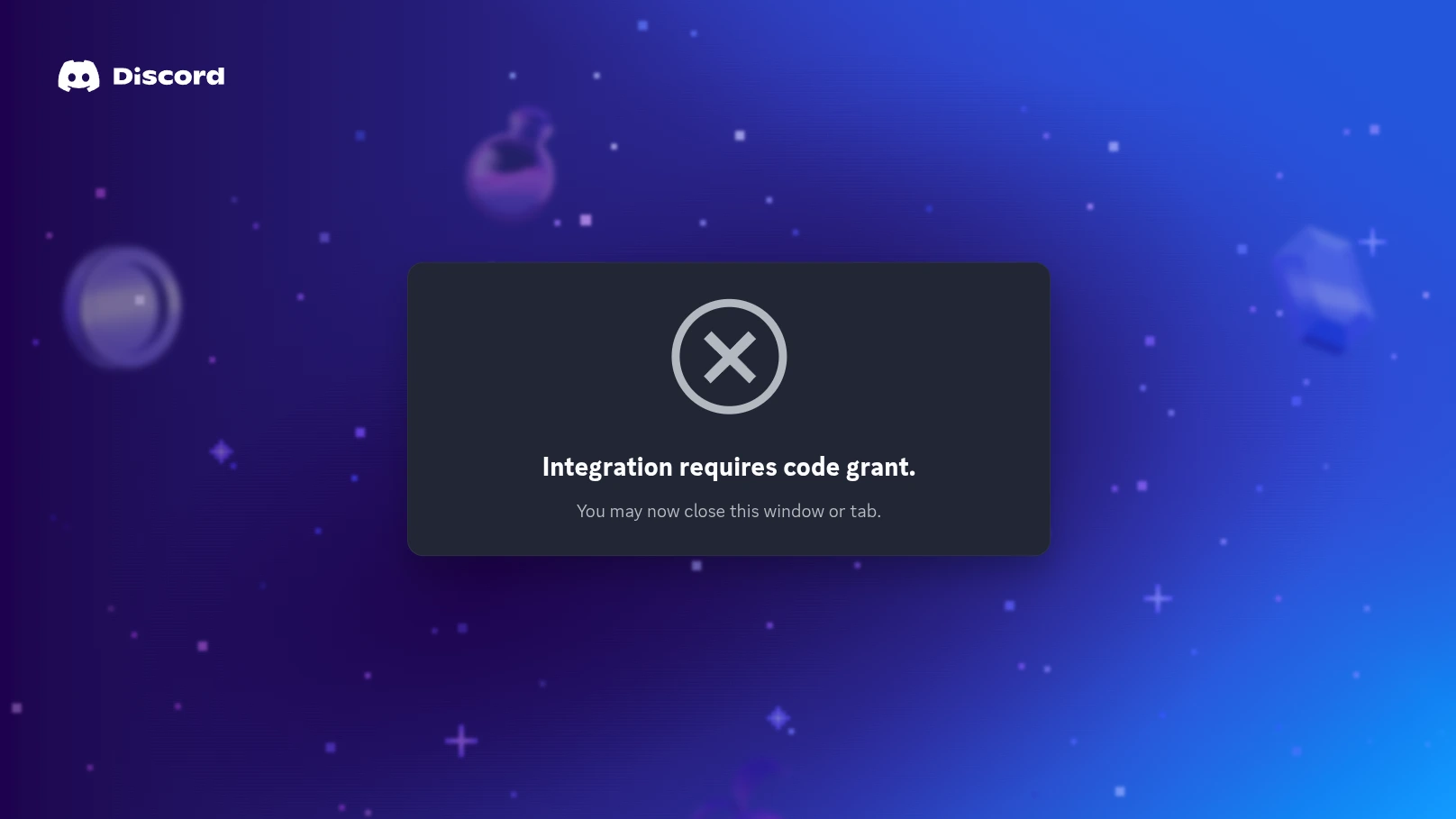
If you’ve tried to install a Discord bot and been stopped by an OAuth-related error, you’re not alone. This is one of those frustrating issues that can appear out of nowhere, especially if you’re building or testing a bot for the first time.
The good news: in most cases, the fix is simple.
What this error means
This error usually appears when you try to invite or install a Discord bot, but the application has the “Requires OAuth2 Code Grant” setting enabled even though the bot is not actually configured to use that flow.
In plain English, Discord is expecting your bot to complete a more advanced OAuth2 authorization process. If your bot doesn’t support that process, the installation fails.
For many bots, this setting is unnecessary. In fact, for standard bot invites, it should usually be turned off.
Why it happens
Inside the Discord Developer Portal, every application has a variety of configuration options. One of them, found under the Bot tab, is called:
Requires OAuth2 Code Grant
This option is meant for applications that use the full OAuth2 authorization code flow. That’s useful in some advanced cases, such as when a web application needs to authenticate users and securely exchange authorization codes.
However, most Discord bots do not need this setting enabled.
If it gets turned on accidentally, Discord treats the bot like it requires a more complex authorization process. When someone tries to install the bot using a normal invite link, Discord blocks it and shows an error.
This often happens because:
- the setting was enabled by mistake
- someone was experimenting in the developer portal
- the bot was copied from another setup
- a template or guide suggested settings that weren’t actually needed
- the developer misunderstood what OAuth2 Code Grant is for
It’s a very common issue, and it affects both beginners and experienced developers.
How to fix the error
If your bot doesn’t specifically use the OAuth2 authorization code flow, the fix is straightforward.
Step 1: Open the Discord Developer Portal
Go to:
Log into the Discord account that owns the bot application.
Step 2: Select the application
From the list of applications, click the bot that’s causing the installation problem.
Step 3: Open the Bot settings
In the left sidebar, click the Bot tab.
Step 4: Disable “Requires OAuth2 Code Grant”
Find the toggle labeled:
Requires OAuth2 Code Grant
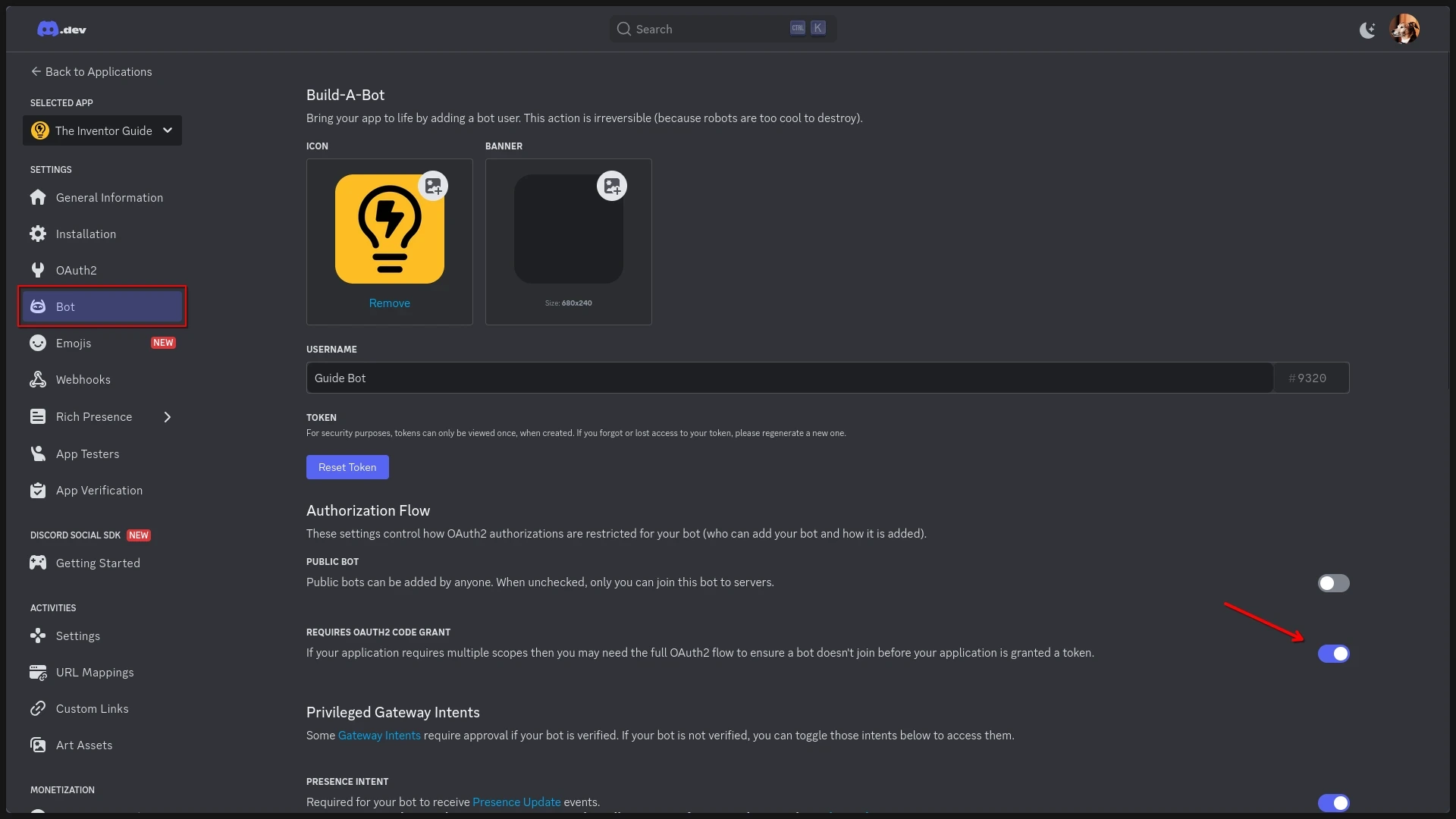
If it’s enabled, turn it off.
Step 5: Save your changes
Make sure your settings are saved.
Once this option is disabled, try using your bot invite link again. In most cases, the install should now work normally.
Why most bots should not use OAuth2 Code Grant
This setting sounds important, so it’s easy to assume it should be enabled. But for the majority of Discord bots, that’s not true.
A typical Discord bot invite only needs:
- the
botscope - possibly the
applications.commandsscope if you use slash commands - the correct permissions for the bot
The OAuth2 Code Grant flow is generally for applications that need a user to authorize access through a web-based login flow and then exchange an authorization code on a backend server.
If your bot is simply joining servers and responding to commands, you probably do not need it.
So if your bot installation is failing and this setting is turned on, that’s a strong sign you’ve found the problem.